
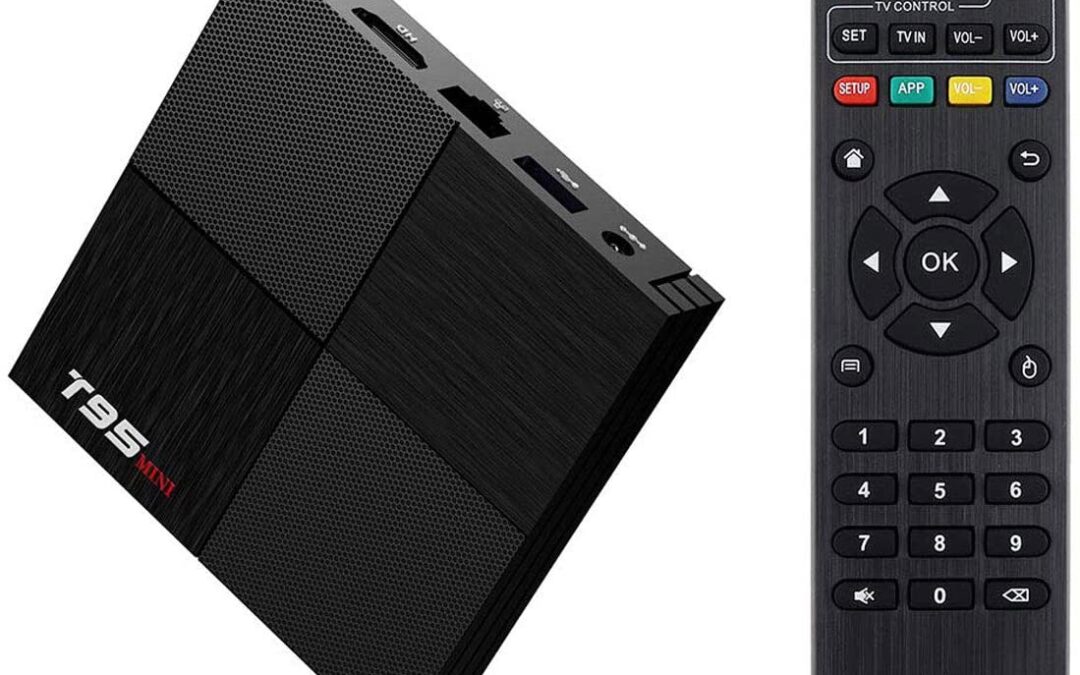
To watch IPTV on TVIP Box, connect the box to your television and internet, then configure the content source your provider supports. You will need the correct server or portal address and any account details required for that connection.
The exact menu depends on your TVIP model, firmware and service. This guide gives you a clear setup sequence, including the manufacturer’s documented TVIP TMS method. Do not copy settings from another person’s box unless your provider confirms they apply to yours.
Before setting up IPTV on TVIP Box
Have your remote, HDMI cable, supplied power adapter and service details ready. Check the model number on the box and ask your provider which connection method it supports. A portal address, an M3U playlist and a TMS login are different types of access.
- Confirm that your subscription is active.
- Ask whether the provider must register your device’s MAC address.
- Keep the server address and login exactly as supplied.
- Save your existing settings before changing a working setup.
The official TVIP documentation is the starting point for model information. If the box was supplied and configured by your television service, ask that service before replacing its settings.
1. Connect the box to your television
Connect the HDMI output to an available HDMI input on the TV. Attach the correct power adapter, switch on the box and select the matching HDMI input using the television remote.
If the TV says there is no signal, check the selected input, power and cable connection first. A portal address cannot fix a missing HDMI picture. Complete the first-start language and display prompts shown on your model.
2. Connect to the internet
Use Ethernet if the box has a suitable port and a cable is practical. If your model supports Wi-Fi, choose your home network and enter its password carefully. Confirm the box shows a working connection before entering service details.
A strong connection helps IPTV on TVIP Box load consistently. If your wider home network is unreliable, work through Ofcom’s broadband checks before repeatedly changing player settings.
3. Choose the correct content source
Open the box’s settings and find the TV or content-source section. Select the option required by your provider. Do not assume that every service uses a source simply named IPTV.
For a TVIP TMS service, the manufacturer documents this route: Settings > TV > Content source > TVIP TMS > Setup Tvip TMS. Enter the supplied TMS address and account login. See the official S-Box connection instructions.
If your provider instead specifies a web portal and that option is available, use its model-specific portal instructions. Ask it to confirm any API mode or extra setting. Random values from an unrelated guide can prevent the service from connecting.
4. Check device registration and login
Some services connect using account credentials, while others require the device to be registered first. TVIP’s TMS documentation also describes provider-managed provisioning and quick binding through the device MAC address.
For IPTV on TVIP Box, use the identifier requested for that actual device. Do not copy the MAC address of your router, phone or another box. If the provider handles registration, send it through its private support channel.
Check the server address for missing punctuation, accidental spaces or an incorrect prefix. Use the full address supplied by the service, including any required path. Keep usernames and passwords private.
5. Save and test IPTV on TVIP Box
Apply the settings and follow any reload or restart prompt. Give the portal time to load, then try several channels. Check picture, sound and the programme guide if your subscription supplies one.
If one stream fails while others work, note that channel for support. If the whole portal fails, recheck the address, account status and device registration. Buying another box is not the first troubleshooting step.
6. Keep a record of the working setup
Once IPTV on TVIP Box works, save the model, firmware version, connection method and provider contact details. Keep sensitive login information in a private place rather than in a public screenshot.
Follow the manufacturer or provider’s update guidance for your exact model. Avoid installing firmware intended for another device. Before a reset or reinstall, confirm you can restore the service details you will need afterwards.
Common IPTV on TVIP Box questions
Does the box include a channel subscription?
Do not assume that buying hardware includes ongoing channel access. Check the seller’s stated package and confirm what your television provider supplies.
What if my menu looks different?
Note the model and software version, then use the matching manufacturer or provider instructions. A missing option can reflect a different model, firmware or managed configuration.
Should I factory reset when the portal fails?
Check the connection, address and account first. A reset can remove saved settings without resolving a server problem. Ask the provider to investigate before taking that larger step.
For general preparation and login terminology, see our smart device setup guide.